Exploring Web Automation with Claude Code and Playwright MCP on Kali Linux
Introduction
The evolution of AI assistants for developers and security researchers continues to show rapid progress. One of the latest innovations is Claude Code, an Anthropic CLI tool that enables Claude models to interact directly with your local environment. This capability becomes even more promising with the Model Context Protocol (MCP), a standard protocol that allows the integration of various external tools into AI.
In this article, we’ll discuss how to integrate Claude Code with the Playwright MCP server on the Kali Linux operating system. Combining Claude’s intelligence with Playwright is extremely powerful for smart web scraping, automated security reconnaissance, or web application testing (web automation) without the hassle of writing complex automation scripts from scratch.
Installation
Before starting the installation, ensure your Kali Linux system is up-to-date and has Node.js and npm installed.
- Install Node.js and npm:
1
2
sudo apt update
sudo apt install nodejs npm
- Install Claude Code:
Claude Code is distributed via npm and needs to be installed globally to be accessible from your terminal:
1
npm install -g @anthropic-ai/claude-code
Once the installation is complete, run the
claudecommand in your terminal to complete browser-based authentication (requires an Anthropic Console account). - Configure Playwright MCP Server:
You can add the official Playwright MCP server to your Claude Code configuration with one handy command:
1
claude mcp add playwright npx @playwright/mcp@latest
Note: On a fresh Kali Linux installation, Playwright might require some system browser dependencies. If you encounter missing browser dependencies, you can install them by running:
npx playwright install --with-deps.
Usage
Once the Playwright MCP is successfully added to your Claude Code configuration, you can instantly start issuing web automation instructions using natural language in your terminal.
Open your Kali Linux terminal, type claude, check /mcp to verify our local mcp has been installed/configured, and try some of these prompt examples:
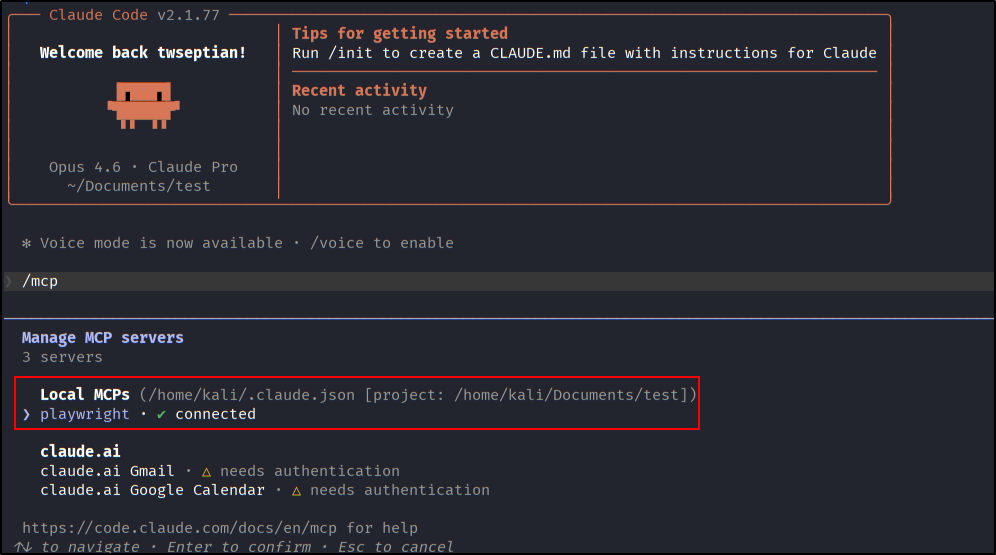 Claude Code MCP Setup
- “Use the playwright tool to open https://twseptian.github.io/, interact with the page, and extract the main headings.”
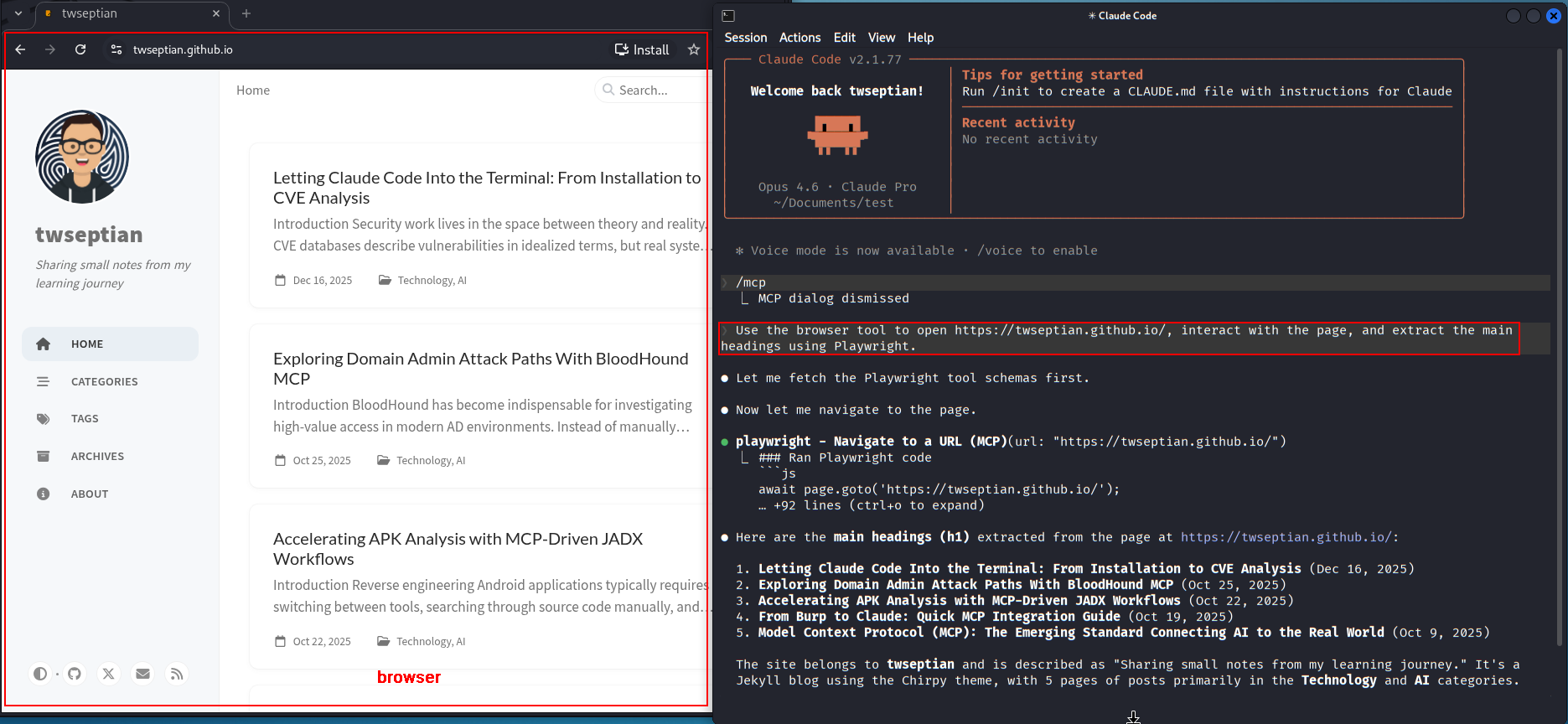 Intract with Playwright
- “Access the login page at [target-url], identify the presence of a login form, find the username and password inputs, and explain its DOM structure.”
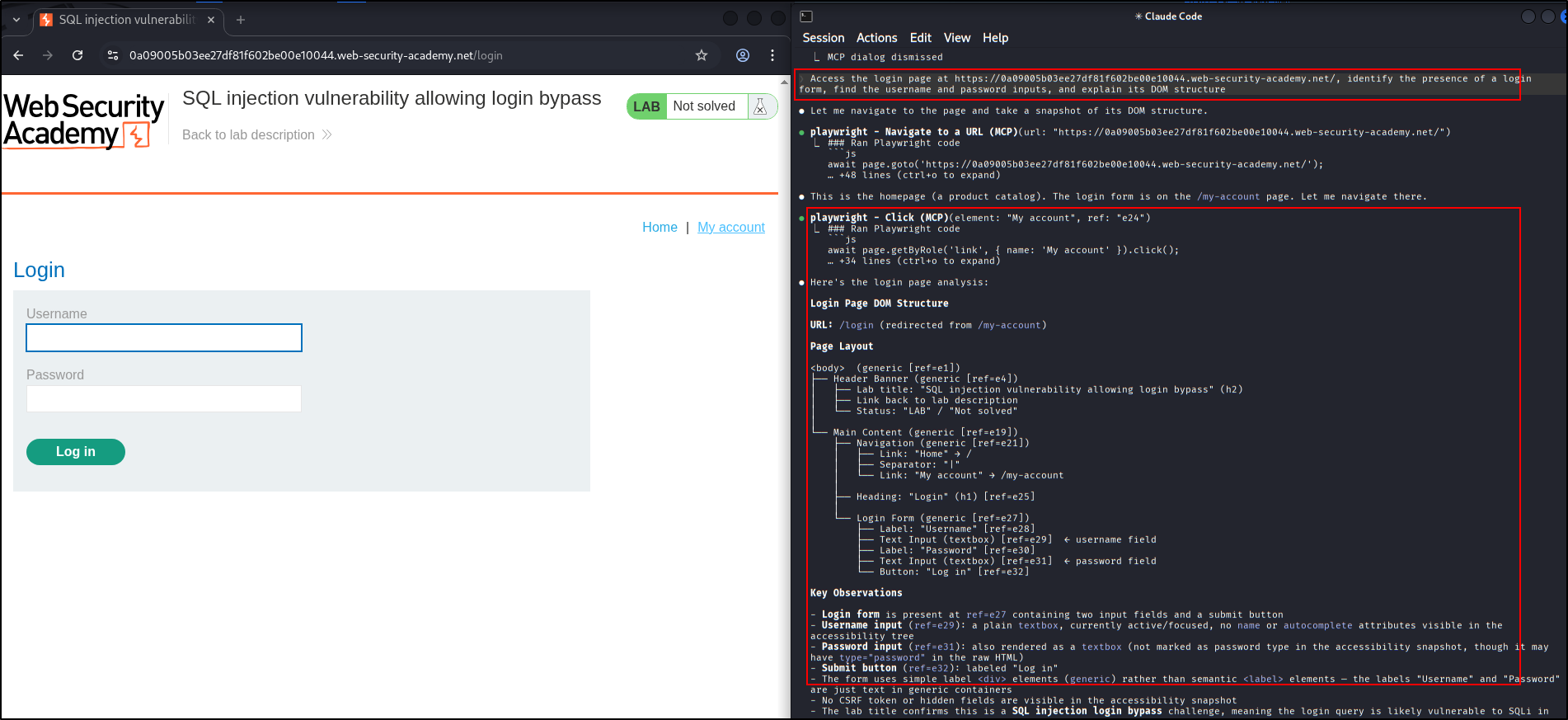 Enumerate Web Page DOM Structure
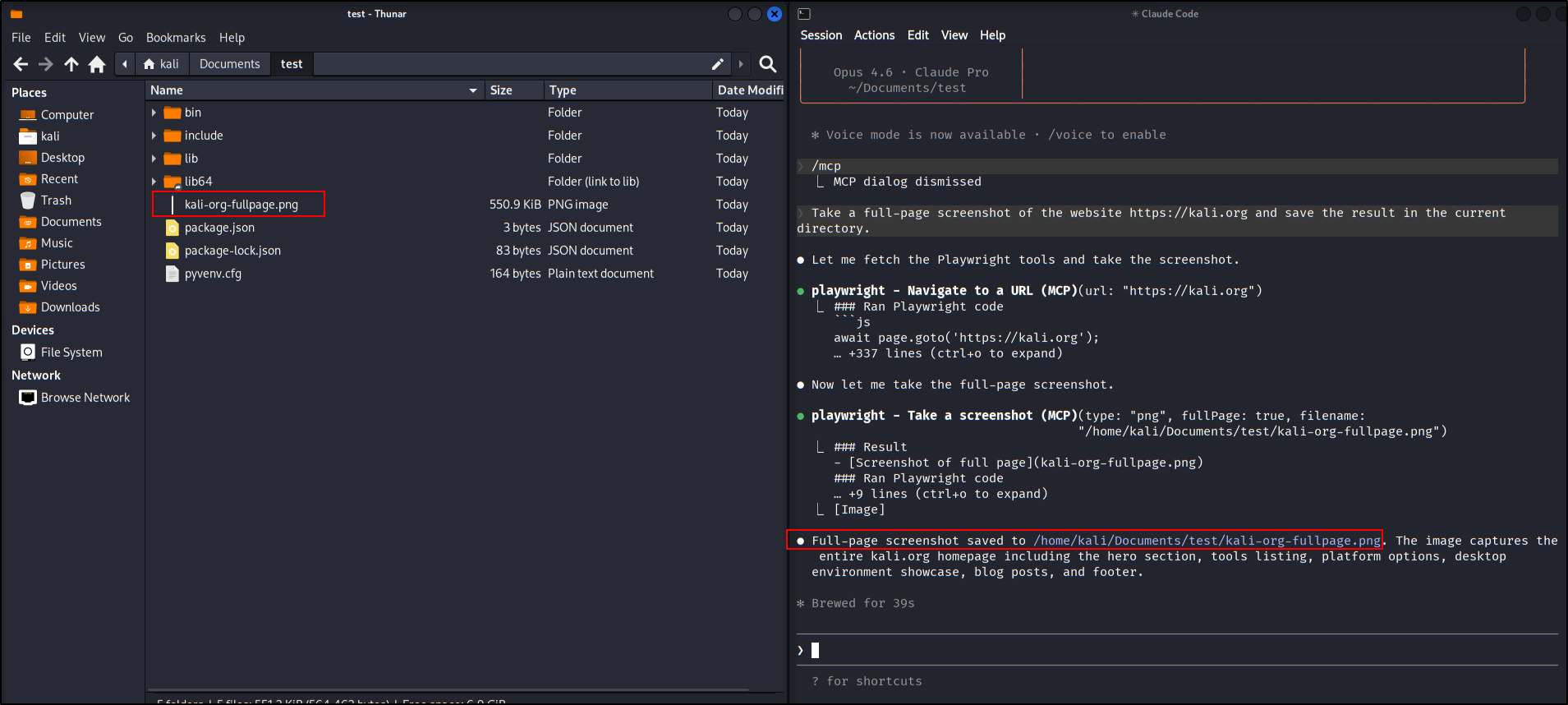
- “Take a full-page screenshot of the website https://kali.org and save the result in the current directory.”
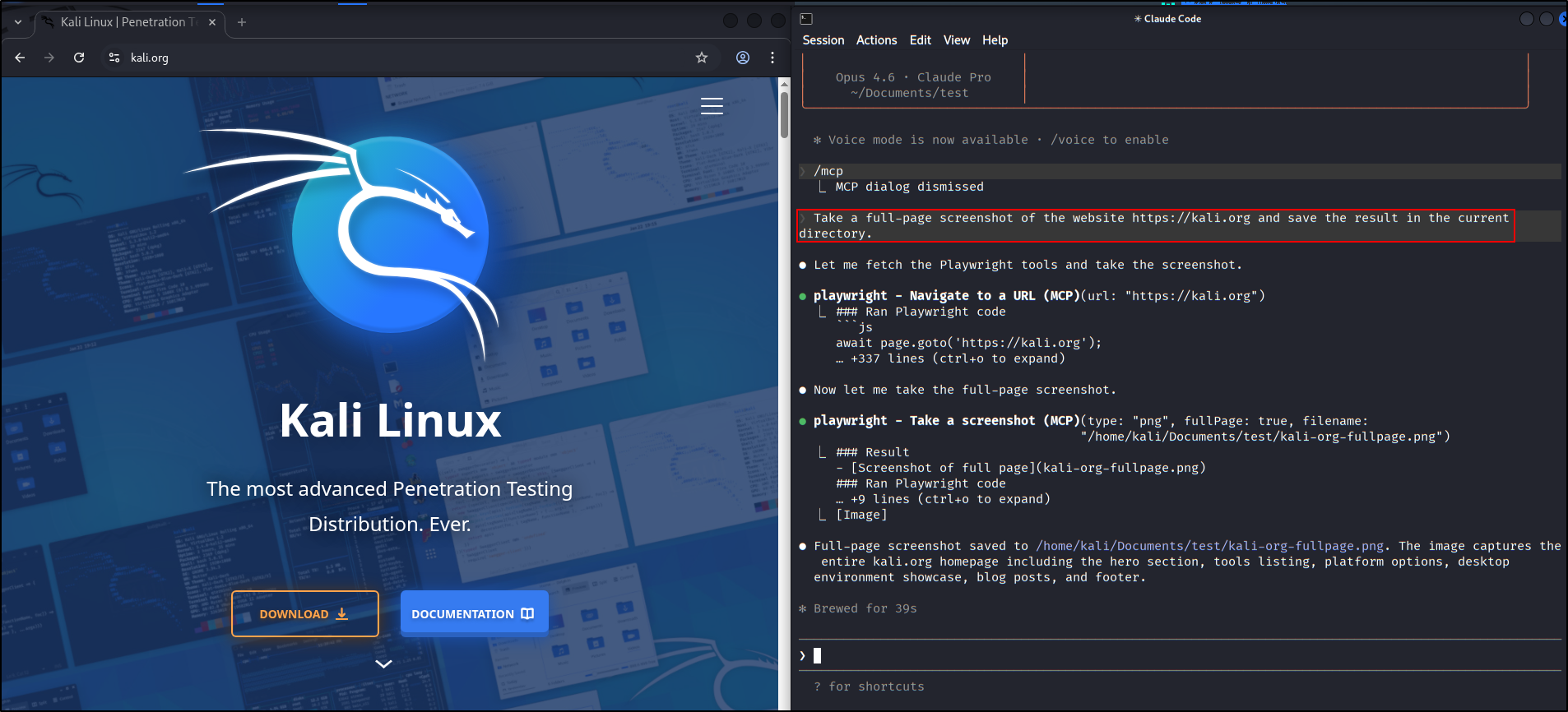 Take Screenshot (1)
 Take Screenshot (2)
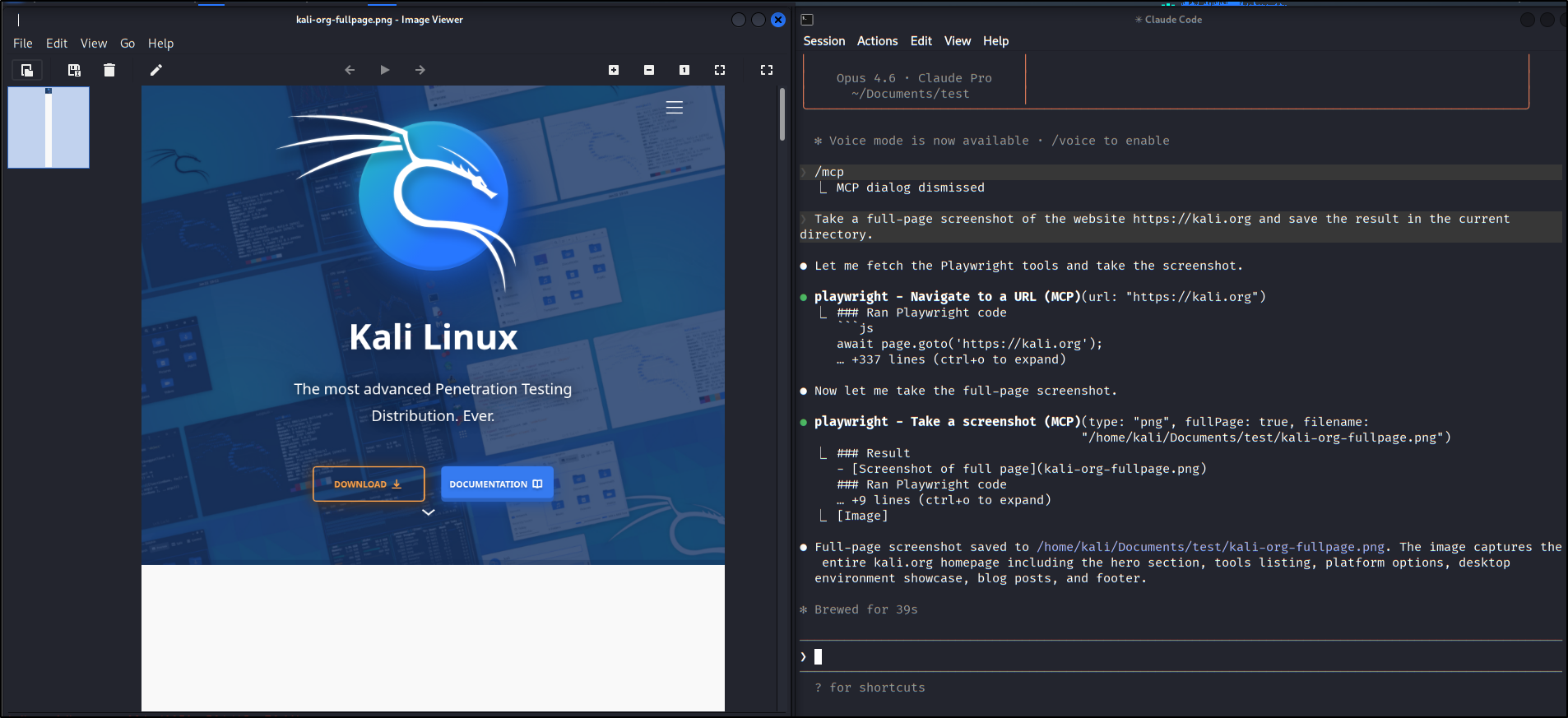 Take Screenshot (3)
Claude will automatically invoke the tools exposed by the Playwright MCP, opening the browser (in headless or normal mode), performing the requested actions, and printing its observations back to your terminal.
Security Notes
Since we are running this setup on Kali Linux, which is the primary environment for penetration testing, there are several crucial security aspects to keep in mind:
- Scope and Authorization: Ensure you only use this tool on authorized targets where you have explicit permission (Bug Bounty scope, pentest agreements, or personal labs). Unnatural patterns of web automation requests can easily trigger Web Application Firewalls (WAF) or Intrusion Detection Systems (IDS).
- Sensitive Data in Prompts: Do not provide instructions to Claude Code that include static passwords, API Keys, or your raw pentest session tokens in plaintext. Remember that the prompt and context will be sent to Anthropic’s servers for processing by the LLM.
- Sandboxing Risks: Playwright will execute the browser on your local machine. If Claude is asked to analyze a site that potentially has Client-Side Exploits or contains malware, it is highly recommended to run these experiments in an isolated container (e.g., Docker container or a separate virtual machine) rather than directly on your host OS. Let your automation code run safely inside a controlled environment.
Conclusion
The integration of the Claude Code CLI and Playwright MCP on the Kali Linux platform opens up many new possibilities in automating both offensive security and development tasks. By leveraging Playwright’s robust browser automation, you can seamlessly navigate web applications interactively and securely through natural language prompts.